
Does your home office computer need to handle little more than email and video calls, or are you regularly working with large files, specialized software, and multiple displays? Mini PCs and traditional desktops can both support a productive workspace, but they differ significantly in size, performance, upgrade potential, and long-term cost. The most suitable format depends less on appearance than on how demanding your daily workload is likely to become.
How The Two Formats Differ
A mini PC compresses the main components of a desktop computer into a compact enclosure that may fit in your hand or mount behind a monitor. It usually connects to a separate display, keyboard, mouse, and other peripherals, just like a full-sized desktop.
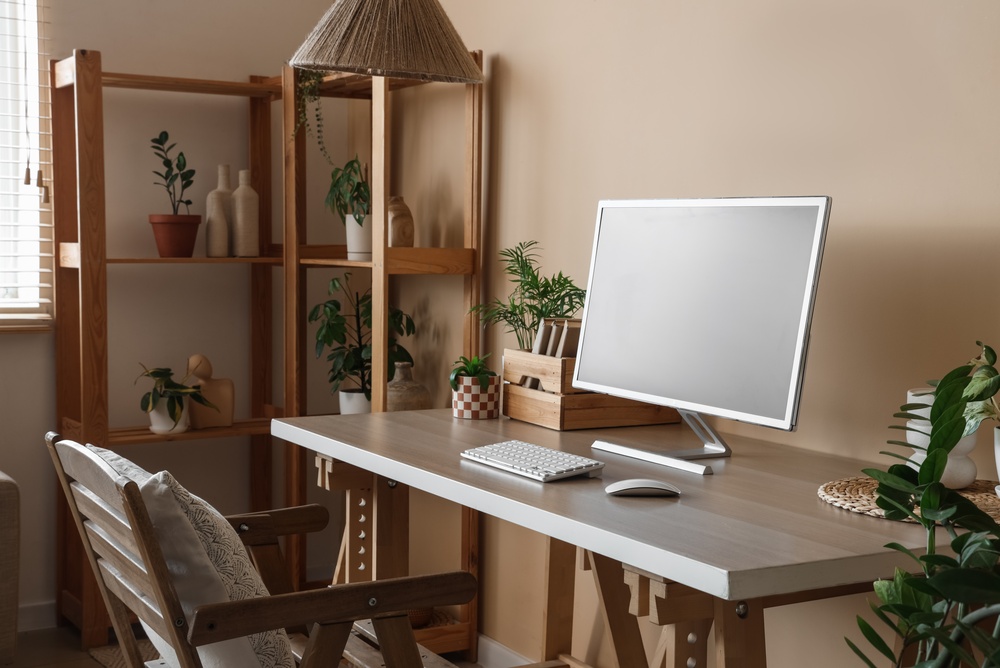
A traditional desktop uses a larger tower or case. That extra internal space allows manufacturers to install more powerful processors, dedicated graphics cards, additional storage drives, and larger cooling systems. It also makes many components easier to replace.
Neither format automatically provides a better work experience. A well-equipped mini PC can outperform an inexpensive tower, while a high-end desktop may offer far more capability than a small system.
Match Performance To Your Daily Workload
For browser-based work, spreadsheets, document editing, accounting software, and video meetings, many current mini PCs provide more than enough performance. Models using processors such as the Apple M-series, Intel Core Ultra, AMD Ryzen, or comparable chips can handle several common office applications at once.
More demanding work changes the equation. Video editing, architectural rendering, software development with multiple virtual machines, engineering programs, and advanced data analysis may benefit from a traditional desktop. A larger system can support higher-wattage processors and dedicated graphics hardware without relying as heavily on compact cooling.
Memory also matters. Eight gigabytes may be limiting when you keep numerous browser tabs, communication tools, and large spreadsheets open. For general home office use, 16GB is often a more practical starting point. Work involving creative or technical software may justify 32GB or more.
Account For The Complete Setup Cost
Mini PCs are sometimes marketed at an attractive starting price, but the advertised figure may not represent a complete computer. Certain models are sold as barebones systems without memory, storage, or an operating system. Others include the computer itself but no monitor or accessories.
A traditional desktop package may include a keyboard and mouse, although a monitor is still frequently sold separately. Before comparing prices, build the total cost around the same requirements.
Setup Expenses
- Computer and operating system
- Monitor or multiple displays
- Keyboard, mouse, and webcam
- Additional memory or storage
- Adapters, docks, or external hubs
A $400 mini PC may end up costing considerably more after you add a monitor, storage upgrade, and docking hardware. On the other hand, reusing equipment you already own can make the smaller system especially economical.
Consider Desk Space And Placement
A mini PC can be useful when your office shares space with a bedroom, dining area, or multipurpose room. Some units can attach to a monitor using a VESA mounting bracket, leaving almost no computer hardware visible on the desk.
A tower requires more floor or desk space and needs room for ventilation. It should not be pressed against a wall, enclosed in a cabinet, or placed where carpet blocks its air intake. These placement requirements may be inconvenient in a compact workspace.
The benefit of a larger case is easier access to ports and internal components. A mini PC mounted behind a monitor may look clean, but plugging in an external drive or memory card can become awkward unless the system has conveniently positioned front ports.
Review Ports Before Buying
Port selection can have a direct effect on how smoothly your office functions. Count the devices you regularly connect rather than assuming every computer supports them.
Your setup may need HDMI or DisplayPort connections for multiple monitors, USB-A ports for older accessories, USB-C or Thunderbolt for docks and fast storage, Ethernet for a stable network connection, and an audio jack for speakers or a headset.
A mini PC with limited ports may require a hub or dock, adding expense and another item to your desk. A traditional desktop usually has more physical room for connections and may allow expansion cards to be added later. However, a carefully selected mini PC can still support two or more monitors and a full set of office peripherals without difficulty.
Think About Upgrades And Repairs
Traditional desktops generally provide the most flexibility after purchase. Depending on the model, you may be able to replace the processor, graphics card, power supply, memory, storage, cooling system, or motherboard. This can extend the computer’s useful life and allow performance to grow with your workload.
Mini PCs vary widely. Some allow memory and storage upgrades, while others solder key components in place. Proprietary designs may also make repairs difficult or uneconomical.
Check the manufacturer’s specifications before assuming a small computer can be upgraded. If memory is fixed, buying more at the outset may be worthwhile. When storage is replaceable, confirm the supported drive format and whether opening the enclosure affects warranty coverage.
Factor In Noise And Energy Use
Many mini PCs consume less electricity than large desktops because they use energy-efficient mobile or compact-system processors. That may reduce operating costs if the computer runs throughout the workday.
Lower power consumption can also mean less heat, but compact systems are not always silent. Small fans may need to spin quickly under sustained workloads, producing a higher-pitched sound. Fanless mini PCs eliminate this issue but typically use lower-powered hardware.
Traditional desktops often draw more power, particularly when equipped with a dedicated graphics card. Their larger fans can move air at lower speeds, however, which may make a properly designed tower quieter during demanding tasks.
Published power ratings and independent noise tests provide more useful information than case size alone.
Plan For The Work You May Add Later
Buying only for your current workload can lead to an early replacement. Consider whether your role may soon involve heavier software, additional monitors, local file storage, or more frequent media production.
A mini PC may remain practical if your work is primarily cloud-based and your performance needs are unlikely to change. It can also serve as a dedicated machine for remote access, bookkeeping, customer support, or administrative work.
A traditional desktop offers more headroom when your responsibilities are still developing. Spending slightly more for additional memory, a stronger processor, and accessible expansion slots may cost less than replacing an undersized computer within a few years.
Build The Office Around The Work
The most useful computer is the one that supports your workload without creating unnecessary cost, clutter, or limitations. A mini PC can provide capable everyday performance in a remarkably small package, particularly when desk space and energy use matter. A traditional desktop offers more room for demanding hardware, repairs, and future upgrades.
Focus on the software you use, the number of devices you connect, and how much flexibility you expect over the computer’s lifespan. Those practical details will reveal far more than the size of the case.